
What are DDoS attacks?
Introduction
A Distributed Denial of Service (DDoS) attack is one of the most common threats to online gaming servers, including Minecraft. Attackers flood a server with excessive traffic, overwhelming its resources and making it slow or completely unresposive. Understanding how DDoS attacks work is the first step in protecting your Minecraft serfver from downtime and disruption. In this guide we'll break down how these attacks happen and what you can do to defend against them.
How do DDoS attacks work?
DDoS attacks often involve the following components:
| Botnets: A network of compromised devices, known as bots or zombies, controlled remotely by an attacker. These devices are used to send a massive amount of traffic to the target, overwhelming its resources. | 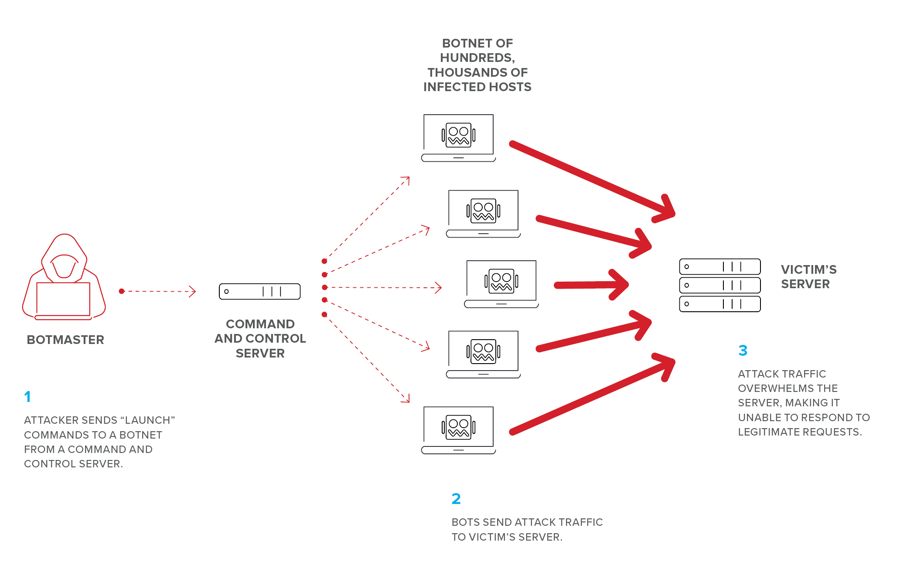 |
| IP Spoofing: Attackers can forge the source IP of packets, making it difficult to identify and block malicious traffic based solely on IP filtering. | 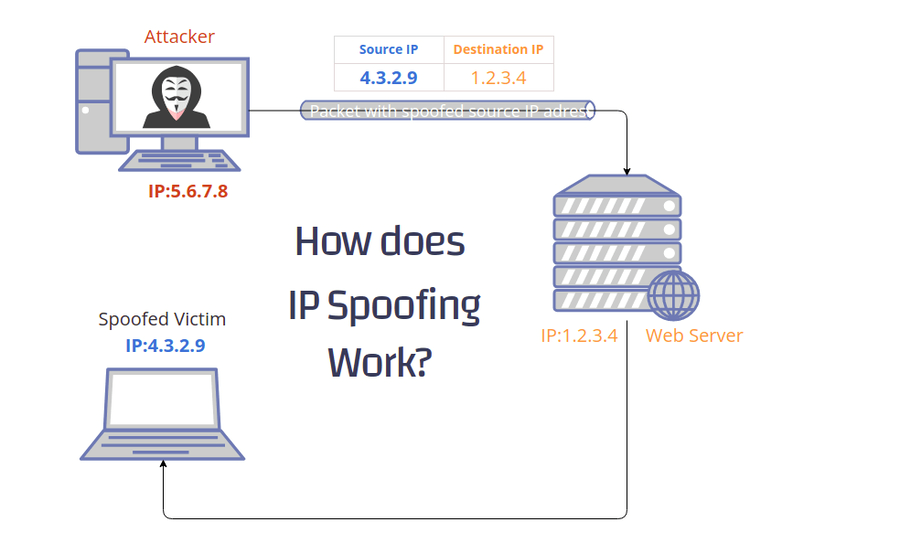 |
| Proxies: Utilizing proxy servers, attackers can mask the origin of the attack traffic, further complicating mitigation effects. Commonly used for layer 7 attacks. | 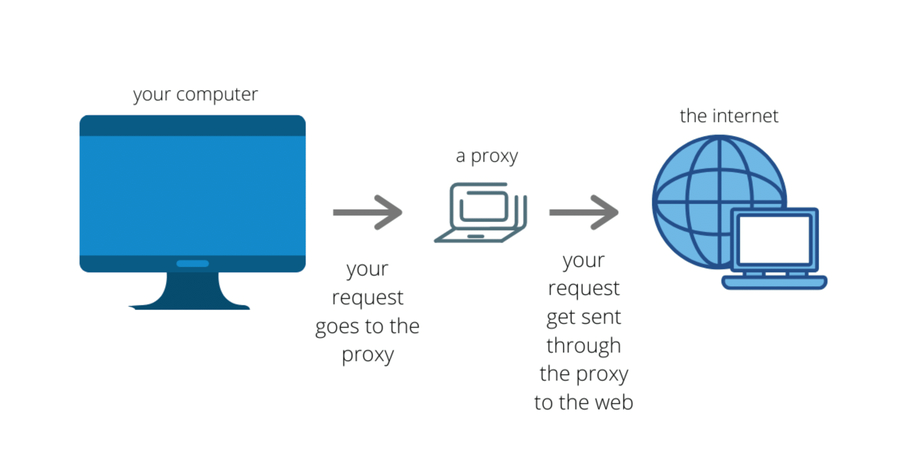 |
Signs that your server might be under a DDoS attack
DDoS attacks can sometimes look like regular traffic spikes, but there are clear signs that differentiate them from normal server load. Here's what to watch for:
1. Unusual Traffic Spikes
- Sudden massive traffic surge with no real player increase.
- Repeated connection attempts from the same or random IPs, that don't belong to any known player.
2. Increased Latency & Lag
- Players complain about severe lag, rubberbanding, or high ping.
- Server response times become noticeably slower.
- Commands take much longer to execute.
3. Unexplained Server Crashes & Freezes
- Frequent timeouts or crashes due to overwhelmed resources.
- CPU usage spikes abnormally, leading to instability.
- The server becomes unresponsive even though the hardware seems fine.
4. Unusual Network Traffic
- High bandwidth usage with no legitimate activity.
- Floods of similar-looking requests.
- Lots of traffic to unused ports.
How to check for a DDoS attack
Unfortunately if you're not running your server on a VPS, or dedicated server, you won't be able to use these commands.
WARNING
Unfortunately if you're not running your server on a VPS, or dedicated server, you won't be able to use these commands.
iftop
iftop shows active network connections based on their bandwidth usage. It's useful for spotting sudden traffic spikes or large data transfers from the same IP.
Installation
# If you don't know what your Linux distro is, you're likely on a Debian-based distro
# Debian-based distros (Debian, Ubuntu)
sudo apt install iftop -y

# RHEL(-like) distros (CentOS, RHEL, Rocky Linux)
sudo yum install epel-release -y
sudo yum install iftop -y

# Fedora & Rocky Linux
sudo dnf install iftop -y

# Arch Linux
sudo pacman -S iftop

# Alpine Linux
sudo apk add iftop
How to run
# Run iftop
sudo iftop

# If this does not use the correct interface, you can use "ip a" to list your network interfaces
# and use the following command (Replace enp1s0 by your network interface)
sudo iftop -i enp1s0
What to look for
- High bandwidth usage from unknown IPs that do not belong to any known players.
nload
nload provides a graphical view of incoming and outgoing bandwidth, which makes it easy to spot usual traffic spikes.
Installation
# If you don't know what your Linux distro is, you're likely on a Debian-based distro
# Debian-based distros (Debian, Ubuntu)
sudo apt install nload -y

# RHEL(-like) distros (CentOS, RHEL, Rocky Linux)
sudo yum install epel-release -y
sudo yum install nload -y

# Fedora & Rocky Linux
sudo dnf install nload -y

# Arch Linux
sudo pacman -S nload

# Alpine Linux
sudo apk add nload
How to run
# Run nload
sudo nload

# If this does not use the correct interface, you can use "ip a" to list your network interfaces
# and use the following command (Replace enp1s0 by your network interface)
sudo nload enp1s0
What to look out for
- Unusual inbound traffic spikes.
- Sudden high traffic without any actual player increase.
Packet capturing
When your server is under a suspected DDoS attack, analyzing network packets can help identify the type of attack and its source. Two of the most powerful tools for packet capture are tshark and tcpdump.
tshark
tshark is the command-line version of Wireshark, allowing you to capture and analyze packets in real-time. It provides advanced filtering and the ability to save traffic for later analysis in Wireshark.
Installation
# If you don't know what your Linux distro is, you're likely on a Debian-based distro
# Debian-based distros (Debian, Ubuntu)
sudo apt install tshark -y

# RHEL(-like) distros (CentOS, RHEL, Rocky Linux)
sudo yum install epel-release -y
sudo yum install wireshark-cli -y

# Fedora & Rocky Linux
sudo dnf install wireshark-cli -y

# Arch Linux
sudo pacman -S wireshark-cli

# Alpine Linux
sudo apk add tshark
Capturing with tshark
Capture and display live traffic.
IMPORTANT
Replace enp1s0 by your network interface, you can find a list of all your network interfaces by running ip a.
# We also specify an argument "-c 1000", this will stop the logging the packets after 1000
# packets have been logged, to prevent you from locking you out of your terminal.
sudo tshark -i enp1s0 -c 1000
Capturing packets and saving them for later
IMPORTANT
Replace enp1s0 by your network interface, you can find a list of all your network interfaces by running ip a.
# In order to stop the packet capture, use CTRL + C
sudo tshark -i enp1s0 -w packet-capture.pcapng
tcpdump
tcpdump is a lightweight, powerful command-line tool for capturing and analyzing network packets in real-time. It is widely used for quick troubleshooting and packet captures.
Installation
# If you don't know what your Linux distro is, you're likely on a Debian-based distro
# Debian-based distros (Debian, Ubuntu)
sudo apt install tcpdump -y

# RHEL(-like) distros (CentOS, RHEL, Rocky Linux)
sudo yum install tcpdump -y

# Fedora & Rocky Linux
sudo dnf install tcpdump -y

# Arch Linux
sudo pacman -S tcpdump

# Alpine Linux
sudo apk add tcpdump
Capturing with tshark
Capture and display live traffic.
IMPORTANT
Replace enp1s0 by your network interface, you can find a list of all your network interfaces by running ip a.
# We also specify an argument "-c 1000", this will stop the logging the packets after 1000
# packets have been logged, to prevent you from locking you out of your terminal.
sudo tcpdump -i enp1s0 -c 1000
Capturing packets and saving them for later
IMPORTANT
Replace enp1s0 by your network interface, you can find a list of all your network interfaces by running ip a.
# In order to stop the packet capture, use CTRL + C
sudo tcpdump -i enp1s0 -w packet-capture.pcap
What to do with a packet capture?
Do to the complexty of packet captures, I don't have the time to explain how to read them here, however there are some great tutorials out there on the internet on how to use Wireshark. If you're still unsure, just ask your hosting provider they should definitely know how to read it, and are most likely able to help you with patching the attack if they offer DDoS protection.
OSI Model Layers Involved in DDoS Attacks
The Open Systems Interconnection (OSI) model is a conceptual framework that standardizes the functions of a telecommunication or computer system into seven distinct layers. DDoS attacks can target various layers, particulary:
| Layer 3 (Network Layer): Responsiple for routing packets across networks. Attacks at this layer, such as ICMP and GRE floods, aim to overwhelm the network infrastructure. | 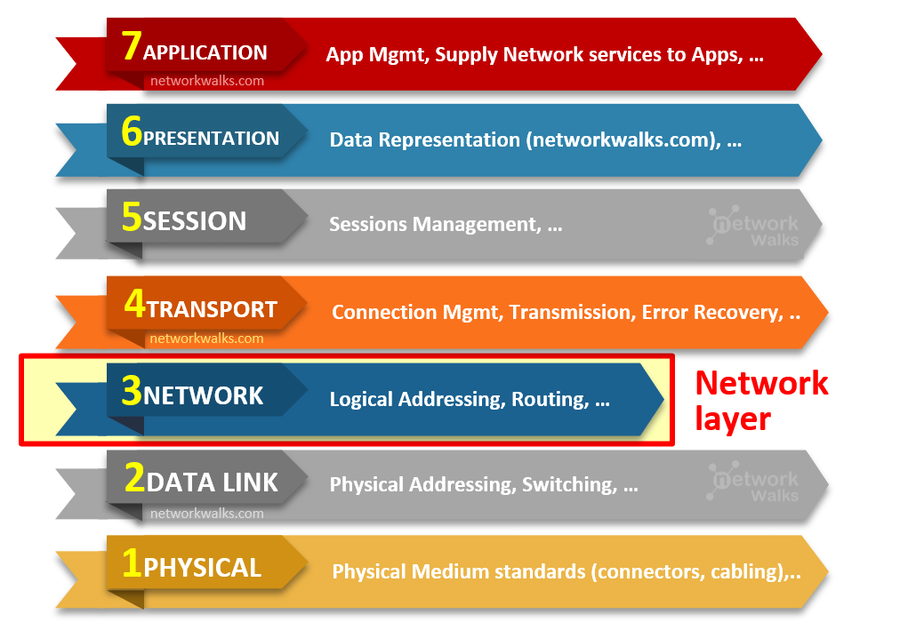 |
| Layer 4 (Transport Layer): Manages end-to-end communication and data flow control. TCP SYN floods are common attacks at this layer, exploiting the handshake process to consume server resources. This is also where TCP and UDP live. | 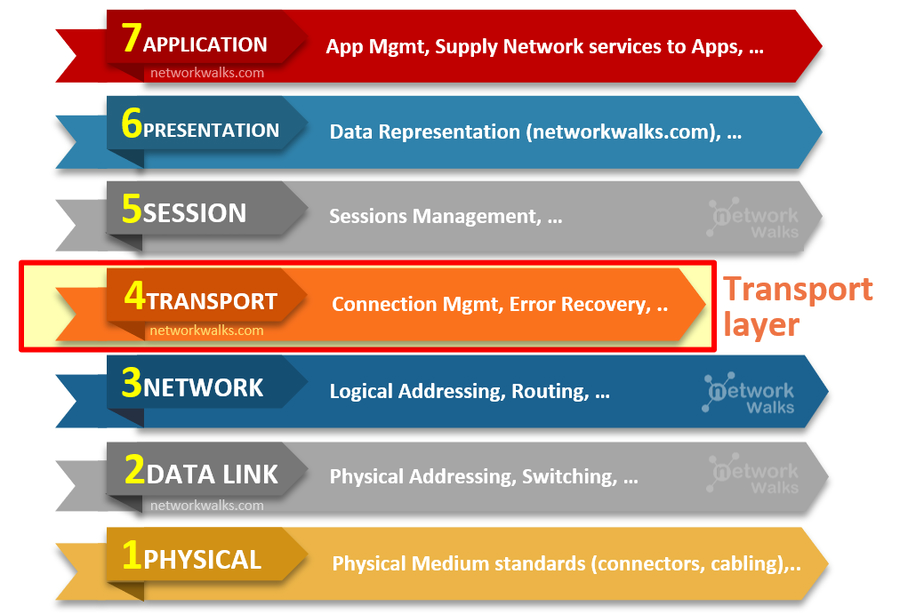 |
| Layer 7 (Application Layer): The top layer, which interacts directly with user applications. HTTP floods target this layer by mimicking legitimate user requests, making them harder to detect. | 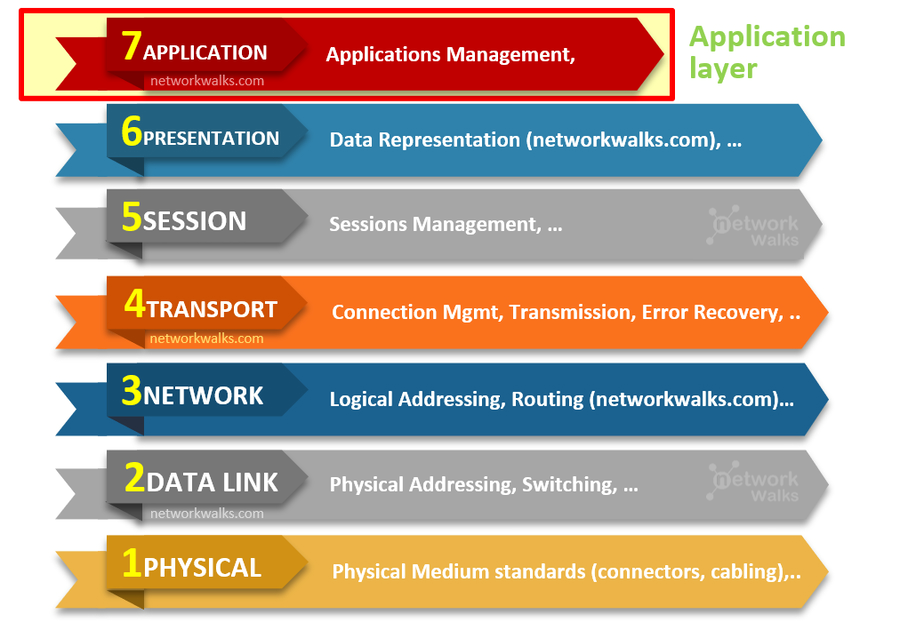 |
Understanding TCP and UDP
TCP (Transmission Control Protocol) and UDP (User Datagram Protocl) are two fundamental protocols that dictate how data is transmitted over the internet. They serve different purposes, and each has it's strength and weaknesses.
What is TCP?
Transmission Control Protocol (TCP) is a connection-oriented protocol, meaning it astablishes a reliable connection before data is sent. Think of TCP like sending a package through a courier with tracking, where every step is confirmed and lost packages are present.
Key Features of TCP
- Reliable: Ensures all data is received in the correct order.
- Connection-oriented: Requires a handshake (SYN, SYN-ACK, ACK) before sending data.
- Error-checking and connection: Lost or corrupted data is retransmitted.
- Slower but more secure: Due to acknowledgements and error correction.
Real-World Examples of TCP
- Web Browsing (HTTP/HTTPS): When laoding websites, TCP ensures that pages load fully and correctly.
- Email (SMTP, IMAP, POP3): Emails need to be delivered reliably.
- File Transfers (FTP, SFTP): Large files must arrive without errors.
- Minecraft servers: Minecraft: Java Edition uses TCP for reliable communication.
What is UDP?
User Datagram Protocol (UDP) is a connectionless protocol, meaning data is sent without establishing a connection. Think of UDP like sending a letter without a return address, there's no guarantee of delivery, but it's much faster.
Key Features of UDP
- Unreliable but fast: No acknowledgements or retransmissions.
- Connectionless: No handshake required before sending data.
- Low overhead: Less processing power needed compared to TCP.
- Used for real-time applications: Where speed is more important than reliability.
Real-World Examples of UDP
- Online Gaming (Minecraft: Bedrock Edition, CS:GO, GTA V, Valorant, etc...): Small delays are acceptable, speed is critical.
- VoIP (Voice over IP, i.e. Discord): Conversations need to be real-time, even if some packets are lost.
- Live Streaming (Twitch, YouTube Live): Some lost frames are fine as long as the stream continues smoothly
- DNS (Domain Name System): Fast lookups without needing verification.
TCP vs UDP: Key Differences
| Feature | TCP (Transmission Control Protocol) | UDP (User Datagram Protocol) |
|---|---|---|
| Reliability | Reliable (error checking, retransmission) | Unreliable (no retransmissions) |
| Speed | Slower due to error checking | Faster, minimal overhead |
| Connection | Connection-oriented (handshake required) | Connectionless (no handshake) |
| Use Case | Web browsing, file transfers, ... | Gaming, voice chat, ... |